Complete setup guide

Install Answer Buddy from website to first session

Follow this flow to choose a plan, copy your license key, install the desktop app, grant permissions, and start using the overlay.

Start with pricing

Before You Start

The whole setup usually takes a few minutes when these are ready.

A Google account

Used for sign-in, purchase history, and license key recovery.

A license key

Created after payment, trial signup, or from your existing dashboard account.

The desktop installer

Download the Windows .exe or macOS .dmg from the Download page.

System permissions

Microphone access is required for transcription; macOS also needs privacy permissions.

Website Flow

Get a license key and installer from the website.

1Website

Choose a plan

Open Pricing, choose the session pack or subscription that matches your interview schedule, then continue to checkout.

  • Use Pay Per Session for one-off interviews.
  • Use Subscription or Lifetime when you interview often.
  • Use the free trial button if you only want to test setup first.
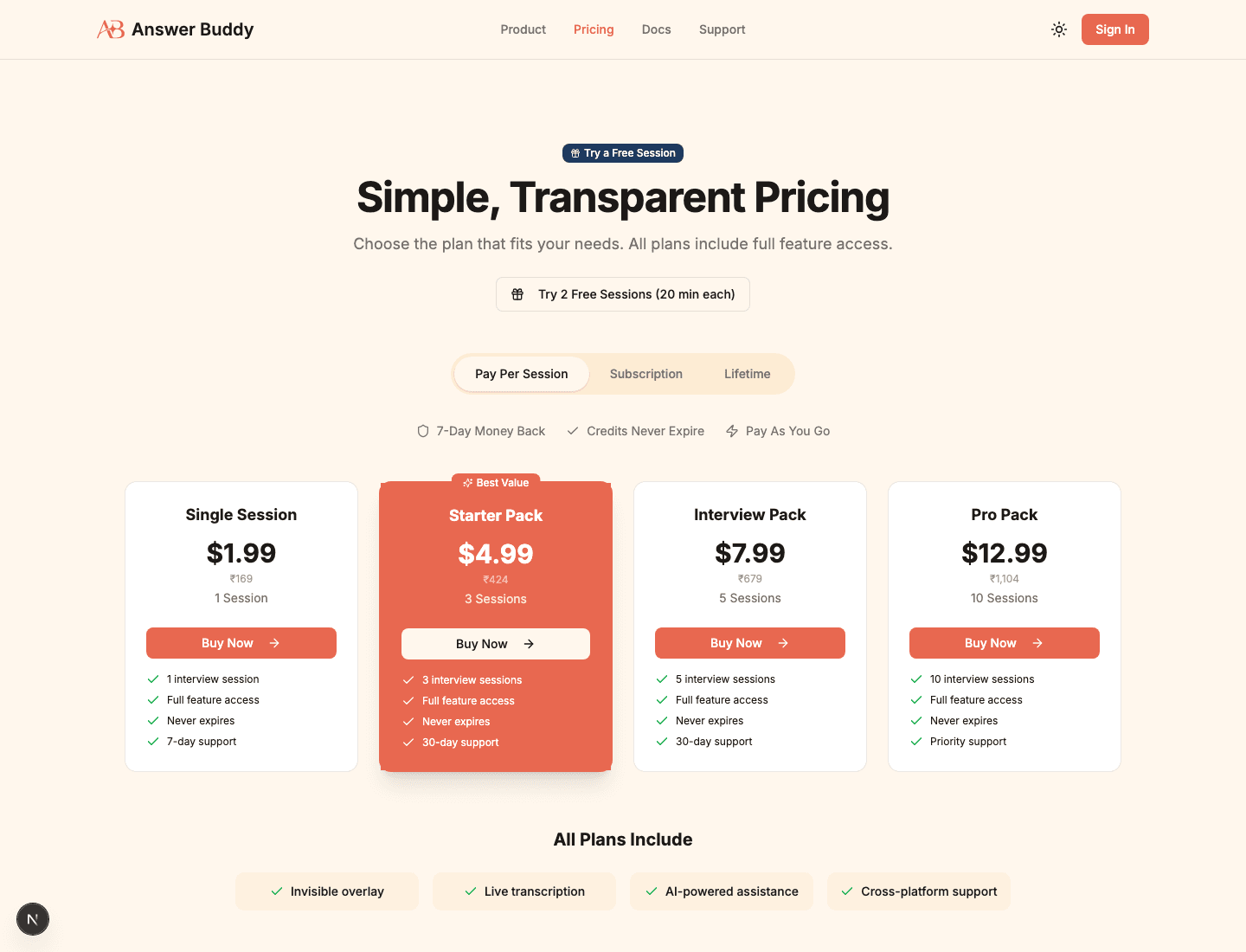
Answer Buddy pricing page with session packs and plan selector.
Choose a plan screen captured from the local Answer Buddy website.
2Website

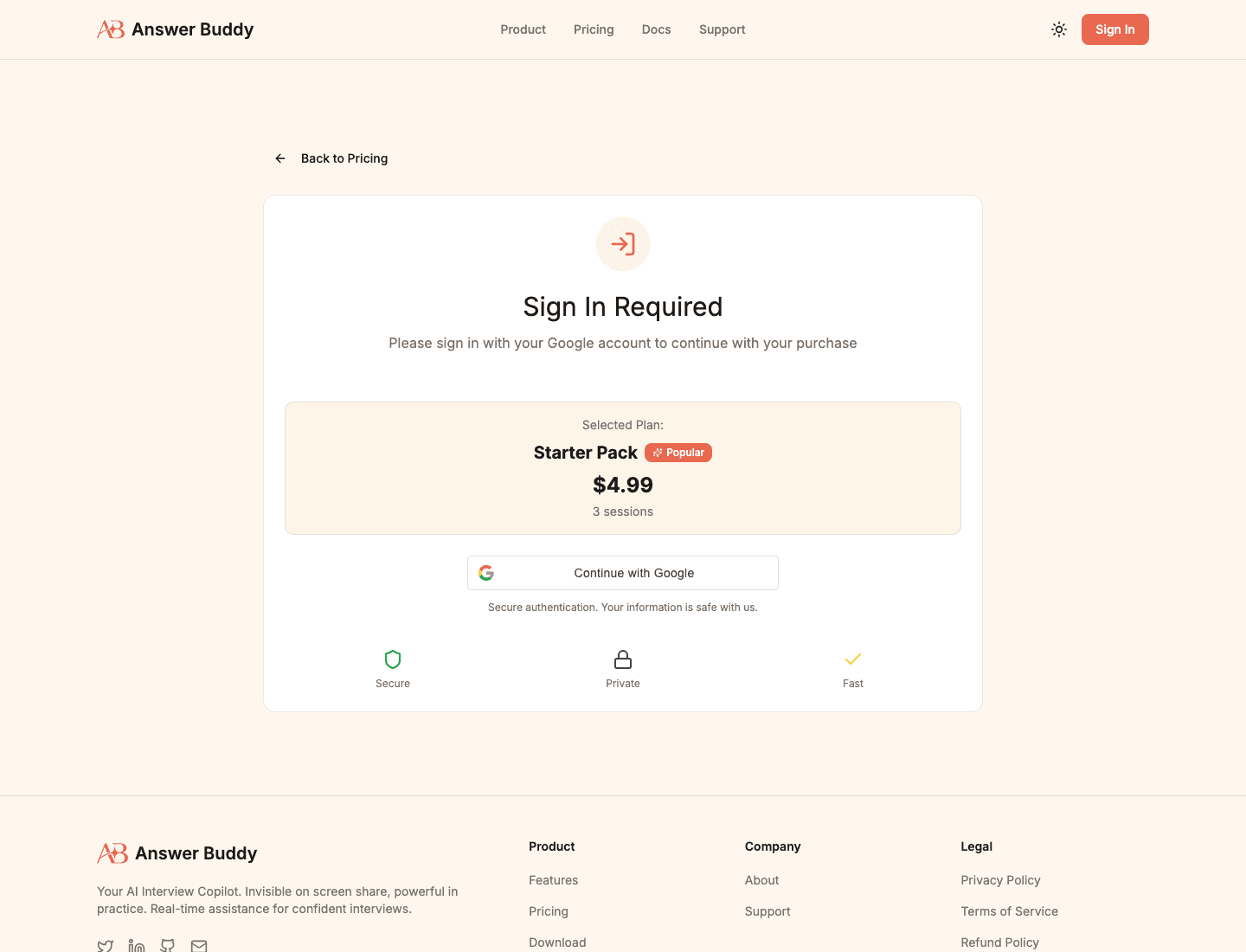
Sign in before payment

Sign in with Google so the license key can be attached to your account and recovered later from the dashboard.

  • Confirm the selected plan on the purchase page.
  • Continue with Google.
  • Complete the payment screen when it opens.
Answer Buddy purchase page requesting Google sign-in before checkout.
Sign in before payment screen captured from the local Answer Buddy website.
3Website

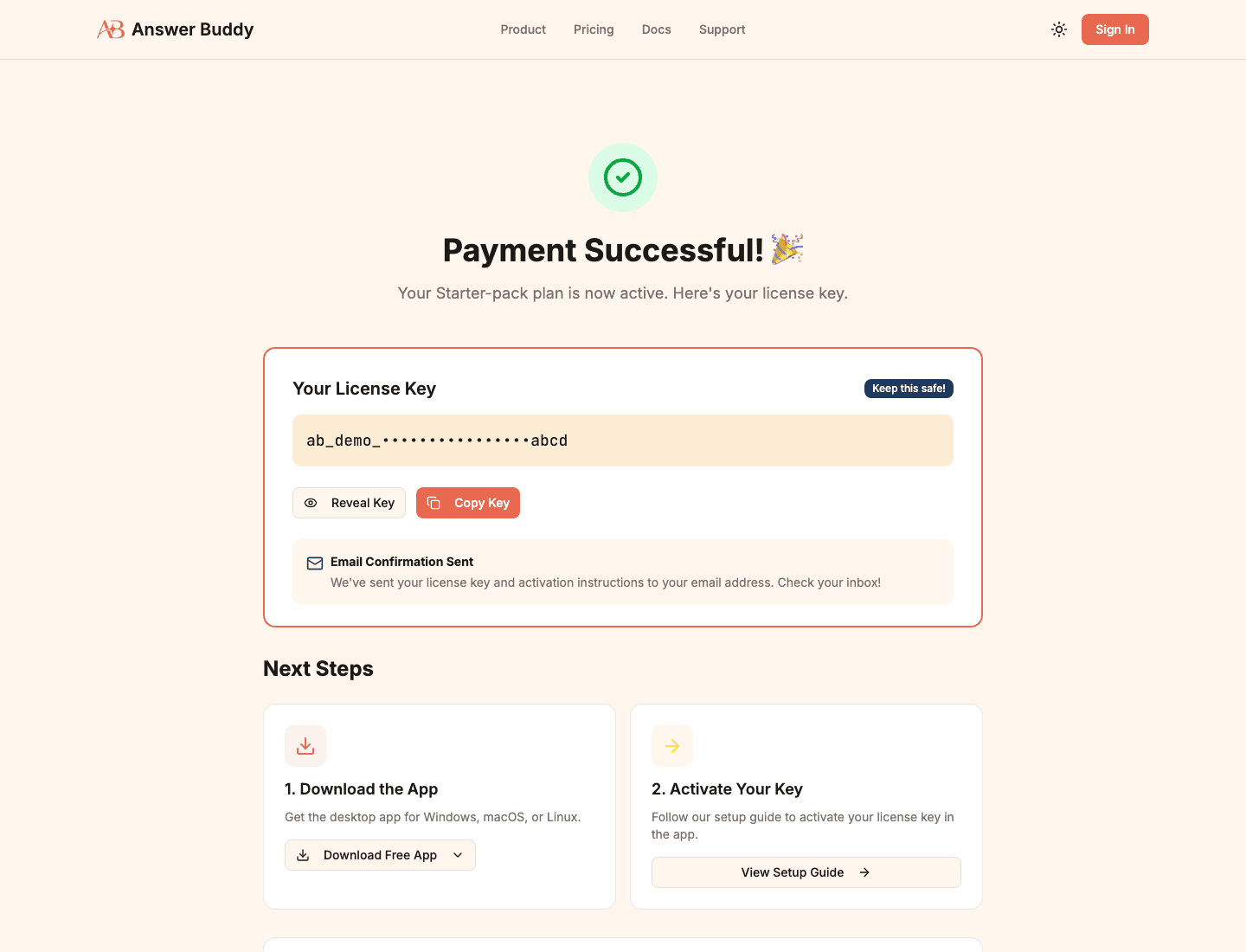
Copy your license key

After a successful payment, copy the license key from the success page. The same key is also sent to your email.

  • Click Copy Key.
  • Store the key somewhere private.
  • Do not share it in chat, screenshots, or public documents.
Answer Buddy payment success page with a masked demo license key and copy button.
Copy your license key screen captured from the local Answer Buddy website.
4Website

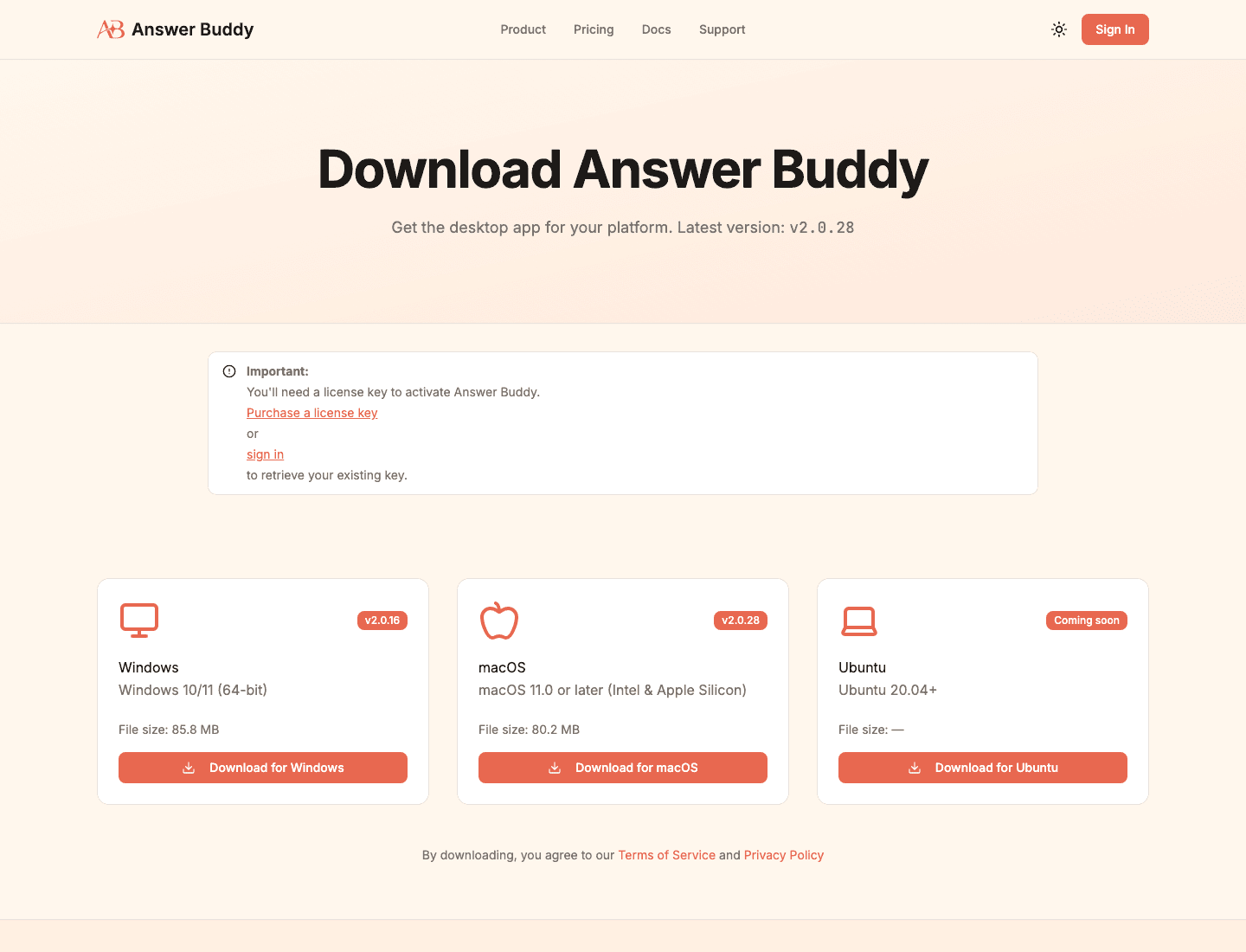
Download the desktop app

Open Download, choose your operating system, and save the latest installer for your computer.

  • Windows users download the .exe installer.
  • macOS users download the .dmg installer.
  • Ubuntu appears when a Linux build is published for download.
Answer Buddy download page with Windows, macOS, and Ubuntu download cards.
Download the desktop app screen captured from the local Answer Buddy website.

Install By Platform

Use the installer that matches your operating system. The app needs internet access for activation and AI responses.

Windows

  1. 1Download AnswerBuddy.exe from the Download page.
  2. 2Open the installer and follow the setup prompts.
  3. 3Launch Answer Buddy from the Start menu or desktop shortcut.
  4. 4Allow microphone access if Windows asks for it.

macOS

  1. 1Download AnswerBuddy.dmg from the Download page.
  2. 2Open the .dmg and drag Answer Buddy into Applications.
  3. 3Open Answer Buddy from Applications.
  4. 4If macOS blocks the first launch, Control-click the app, choose Open, then confirm.
  5. 5Grant Accessibility, Screen Recording, and Microphone permissions, then restart the app.

Ubuntu

  1. 1Use the Ubuntu download card only after it shows an available release.
  2. 2Install the .deb, or make the AppImage executable if that format is provided.
  3. 3Launch Answer Buddy from your applications menu.
  4. 4Use X11 for global shortcuts when Wayland blocks them.

Desktop App Flow

Activate the app, grant permissions, and start the overlay.

5Desktop app

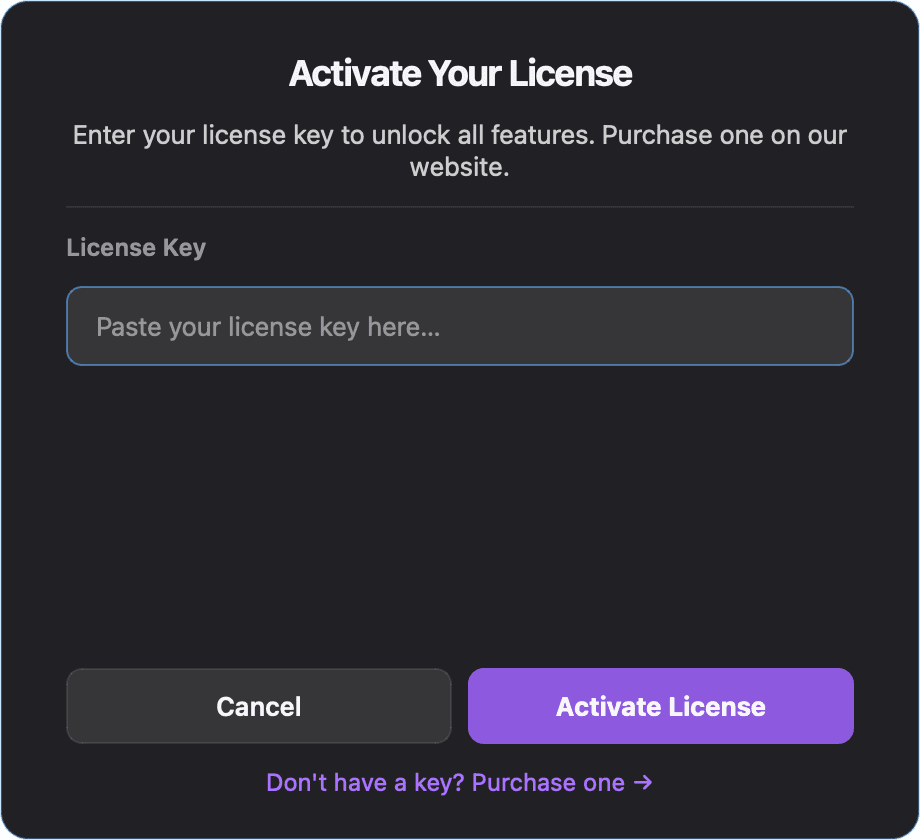
Activate the app

Launch Answer Buddy and paste the license key you copied from the website.

  • Keep your internet connection active during activation.
  • Click Activate License.
  • If activation fails, check that the key was copied without extra spaces.
Answer Buddy desktop license activation dialog.
Activate the app screen captured from the Answer Buddy desktop app.
6Desktop app

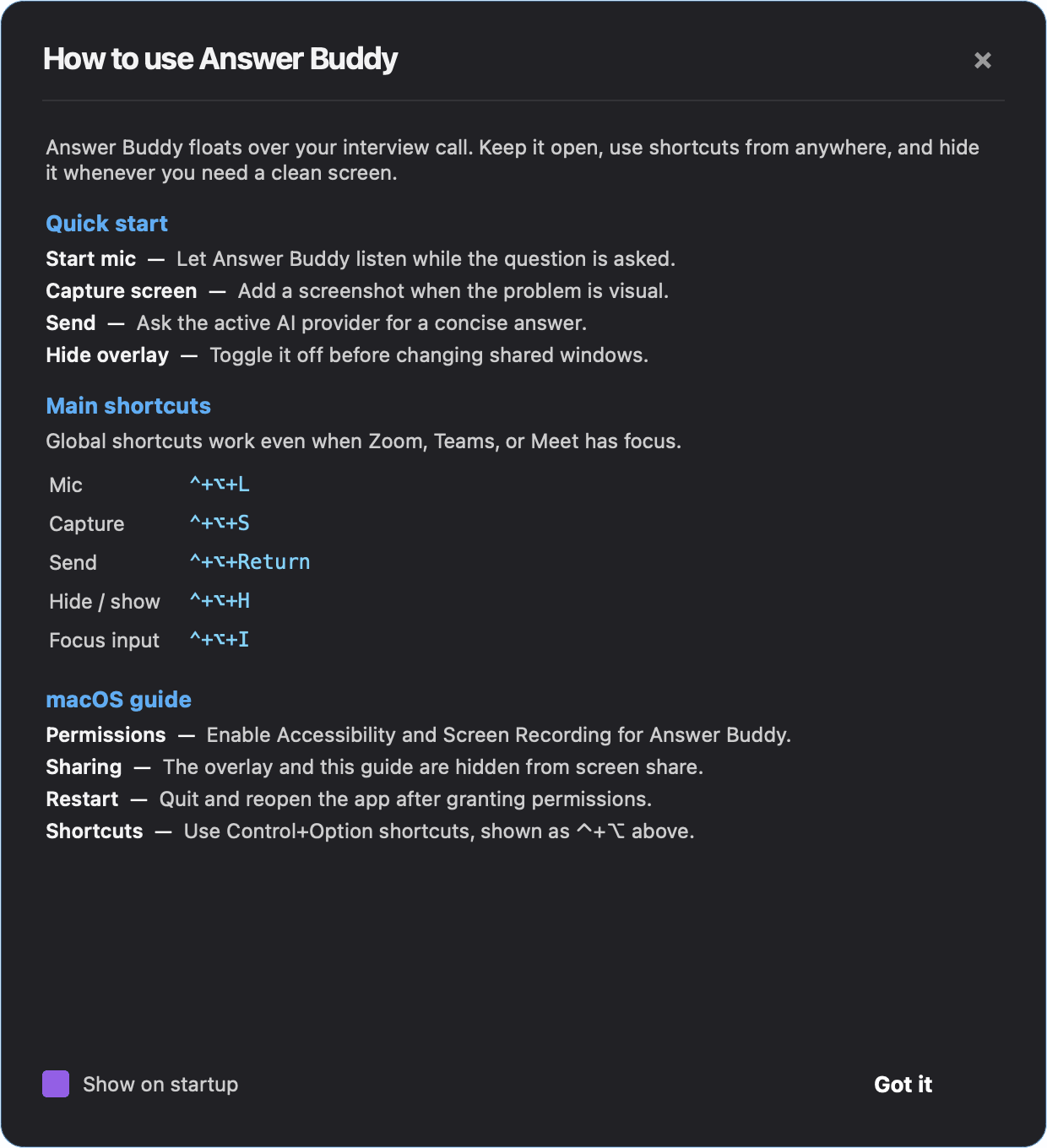
Review the startup guide

Read the in-app guide once. It shows the main shortcuts and platform-specific permission reminders.

  • On macOS, grant Accessibility and Screen Recording when prompted.
  • Allow microphone access for live transcription.
  • Restart the app after changing privacy permissions.
Answer Buddy desktop startup guide with shortcuts and macOS permission notes.
Review the startup guide screen captured from the Answer Buddy desktop app.
7Desktop app

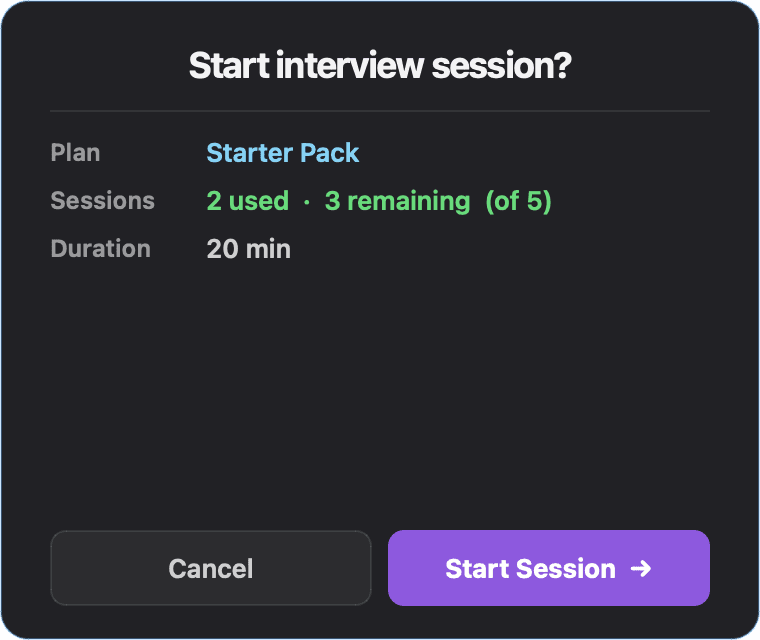
Start your session

Confirm the session details before the overlay appears. This shows your plan, remaining sessions, and session duration.

  • Check the remaining session count.
  • Click Start Session when you are ready.
  • Cancel if you opened the app by mistake.
Answer Buddy desktop start session confirmation dialog.
Start your session screen captured from the Answer Buddy desktop app.
8Desktop app

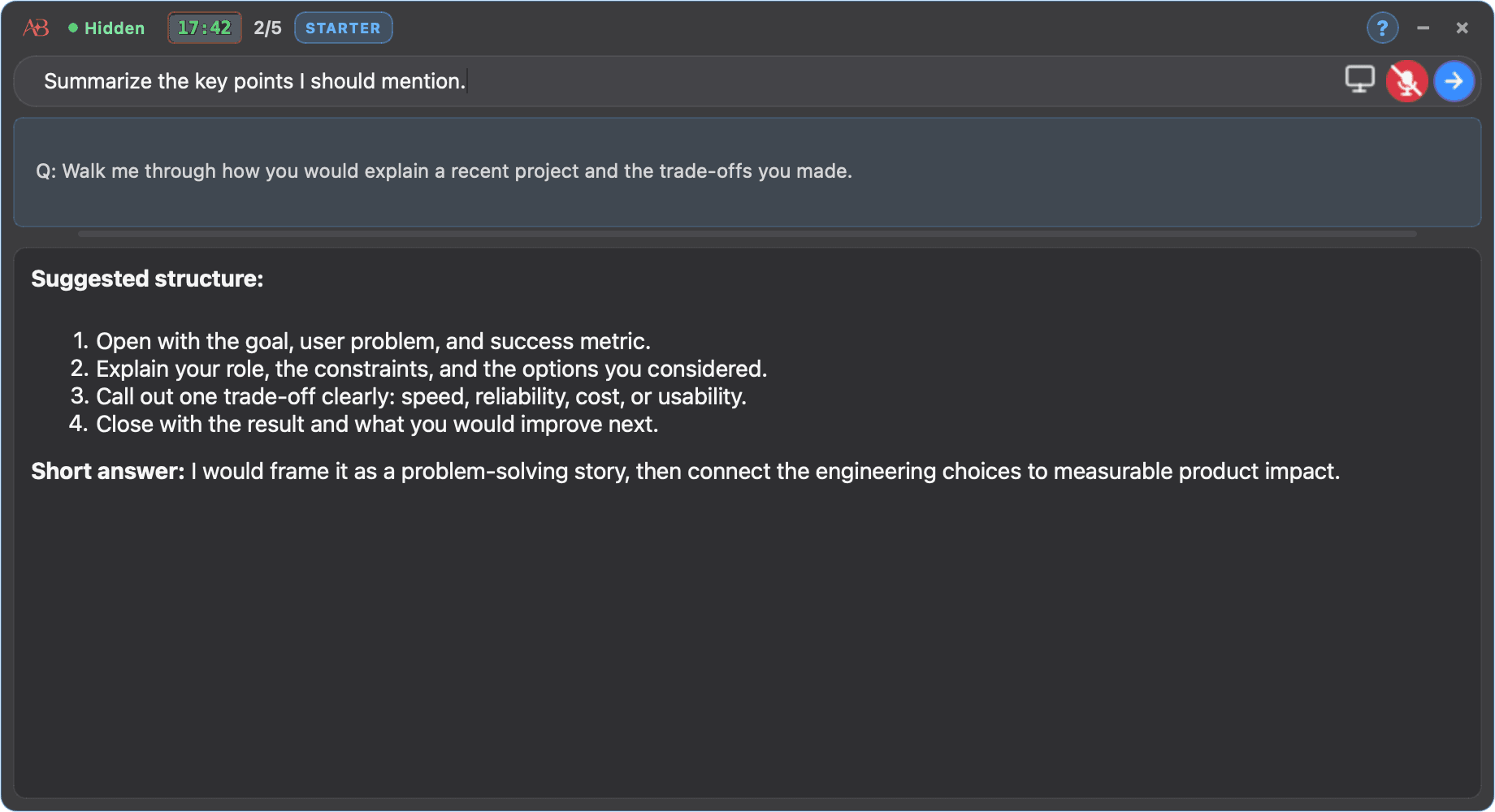
Use the overlay

The overlay opens with the input row, capture button, microphone button, session timer, and answer panel.

  • Type or dictate the question.
  • Use the screen button when the question is visual.
  • Use the hide shortcut when you need a clean screen.
Answer Buddy desktop overlay with session timer, input row, and answer panel.
Use the overlay screen captured from the Answer Buddy desktop app.

Quick Troubleshooting

Most setup issues are caused by a missing permission, an incomplete download, or signing in with a different account.

I cannot find my license key.

Check the payment success page, your confirmation email, or the dashboard after signing in with the same Google account.

The app asks for permissions again after I granted them.

Quit Answer Buddy completely, reopen it, and try again. macOS privacy changes often require an app restart.

The microphone does not start.

Confirm the correct microphone is selected in system settings and that Answer Buddy has microphone permission.

The installer does not download.

Refresh the Download page, try another browser, and confirm your network is not blocking Oracle Object Storage downloads.